SVG ANIMATION / FOR WINDOWS
Room to think.
Space to
make it move.
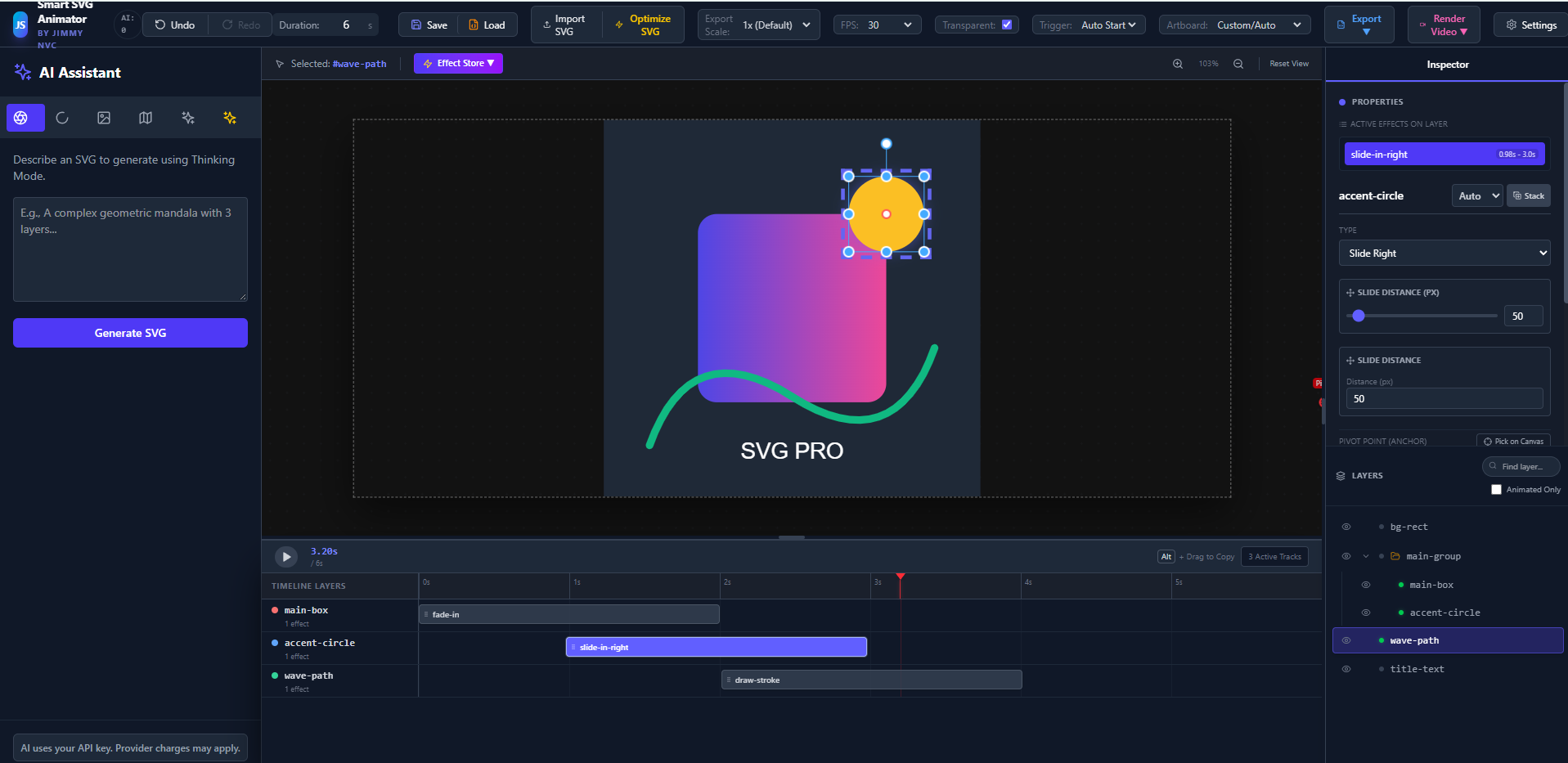
A dedicated desktop workspace for SVG artwork, individual layers and a visual animation timeline. Turn a still illustration into a moving idea.
Store pricing, availability and supported Windows versions are shown in the Microsoft Store listing.
FROM ARTWORK TO ANIMATION
The details make
the difference.
Work on movement layer by layer. Save the editable project and review each exported result before sharing it.
Your artwork, on your device.
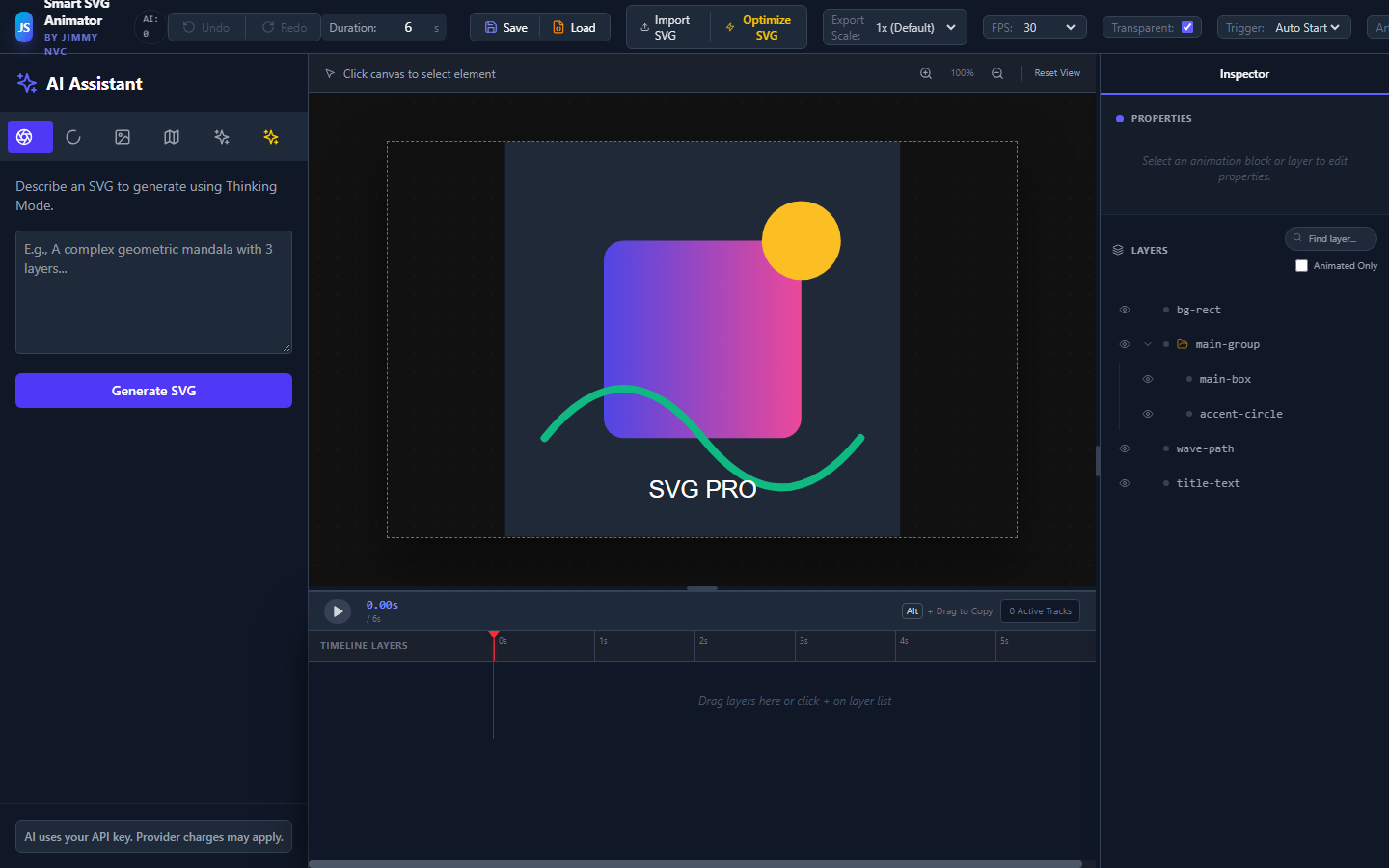
Import SVG artwork, select objects and groups, and use the timeline to adjust effects, timing, easing and loops.
A file you can return to.
Save your project explicitly as JSON to keep artwork and animation tracks. There is no automatic cloud project backup.
A result you can review.
Use the export options available in your installed edition. Video codecs, device support and format compatibility can affect the output.
A LITTLE INSPIRATION
Make the static
feel alive.
A creator-supplied animation example shared as inspiration, rather than a claim that every effect is available in every Store release.
ONE STEP AT A TIME
Give the idea
some movement.
- 01
Install from Microsoft Store.
Open the Store listing, review compatibility and pricing, then install using your Microsoft account.
- 02
Import. Select. Animate.
Bring in an SVG, select a layer, add an effect and adjust its duration on the timeline. Use Play to check the result.
- 03
Save and export.
Save a project before closing. Review your chosen export format and the output on its intended device or website.
MICROSOFT STORE / ITS OWN EDITION
One app.
A separate purchase.
Microsoft handles Store purchases, the Pro add-on and purchase restoration. Follow the price, duration and renewal details shown in the Store purchase screen. A Polar license for the browser or VS Code edition does not activate the Microsoft Store app.
Feature availability can differ between Store, browser and VS Code releases. The newer Motion Path/Morph Studio examples on the VS Code page are not presented as features already ported to this Store build.
Check Microsoft Store details ↗Read Windows privacyOPTIONAL ASSISTANCE / CREATIVE CONTROL STAYS WITH YOU
A helpful extra.
Your eye comes first.
AI is optional.
The visual editor works without AI. Optional AI tools assist with parts of the animation workflow; they are not a complete automated animation service. Results depend on your prompt and artwork, and may not match your expectations. Review and edit the result before using it. Your own provider API key is required, and provider charges may apply separately.
Optimize with intention.
Optimize SVG can produce different results depending on the source artwork, its structure and the operation used. Prepare and edit the artwork first so you can control output quality. Keep a copy, organize layers and groups, remove unwanted hidden objects, and inspect paths, masks, clipping and fonts before and after optimization.
Local cleanup and optional provider-assisted optimization are different operations. When you explicitly use provider tools, submitted prompts and relevant artwork are sent to that provider. Neither operation guarantees a perfect appearance, a smaller file or a ready-to-ship animation.
Keep the original. Compare the result. Preview every important state before export.
YOUR NEXT MOVING IDEA